
What this guide will help you do
Follow the steps below to prepare your design and complete the Marketplace setup.
Add your logo to the back of each card.
Use up to 150 characters about you or your brand.
See how the card back updates as you edit.
Before you start
We recommend a 512px squared JPG or PNG at 300dpi.
The maximum number of characters is 150.
Open Profile and then Card Settings.
Adding Your Logo to the Back
Open your Marketplace profile
To do this you’ll need to go to the marketplace dashboard. From here click the profile link on the top of the page. This will then show you a page like below. We recommend uploading a 512px squared jpg or PNG 300dpi. For the text on the back the max number of characters is 150.
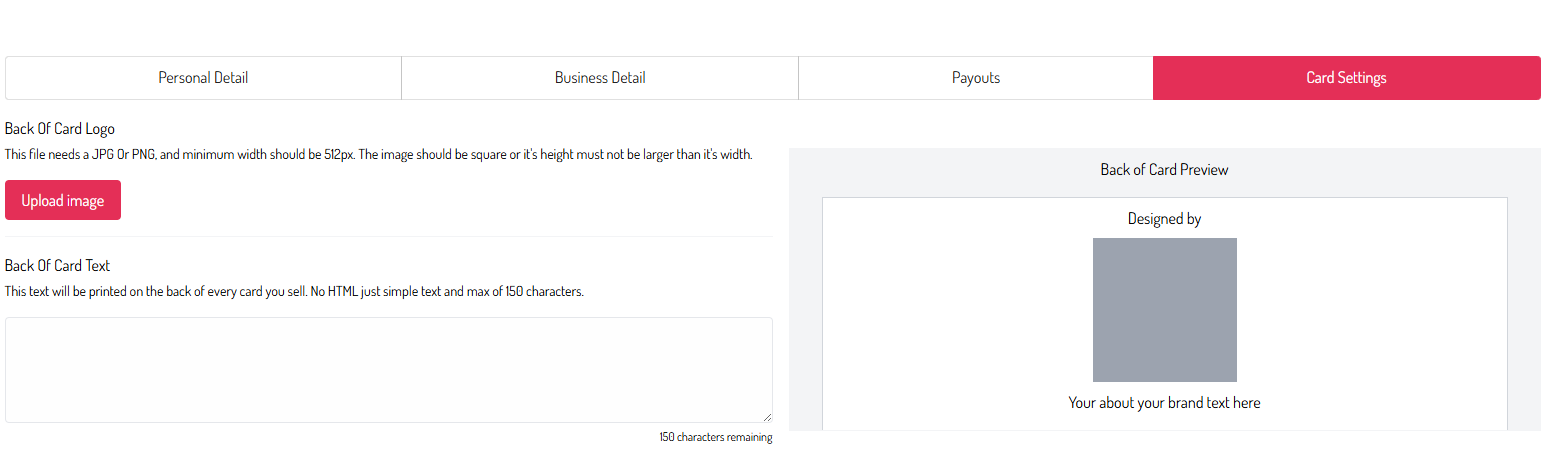
Upload your logo and add text
If you click the card settings, you’ll then be given the option to upload your logo and the option to write some text about you or your brand. The right part will update in real time showing you how the back of your cards will look.
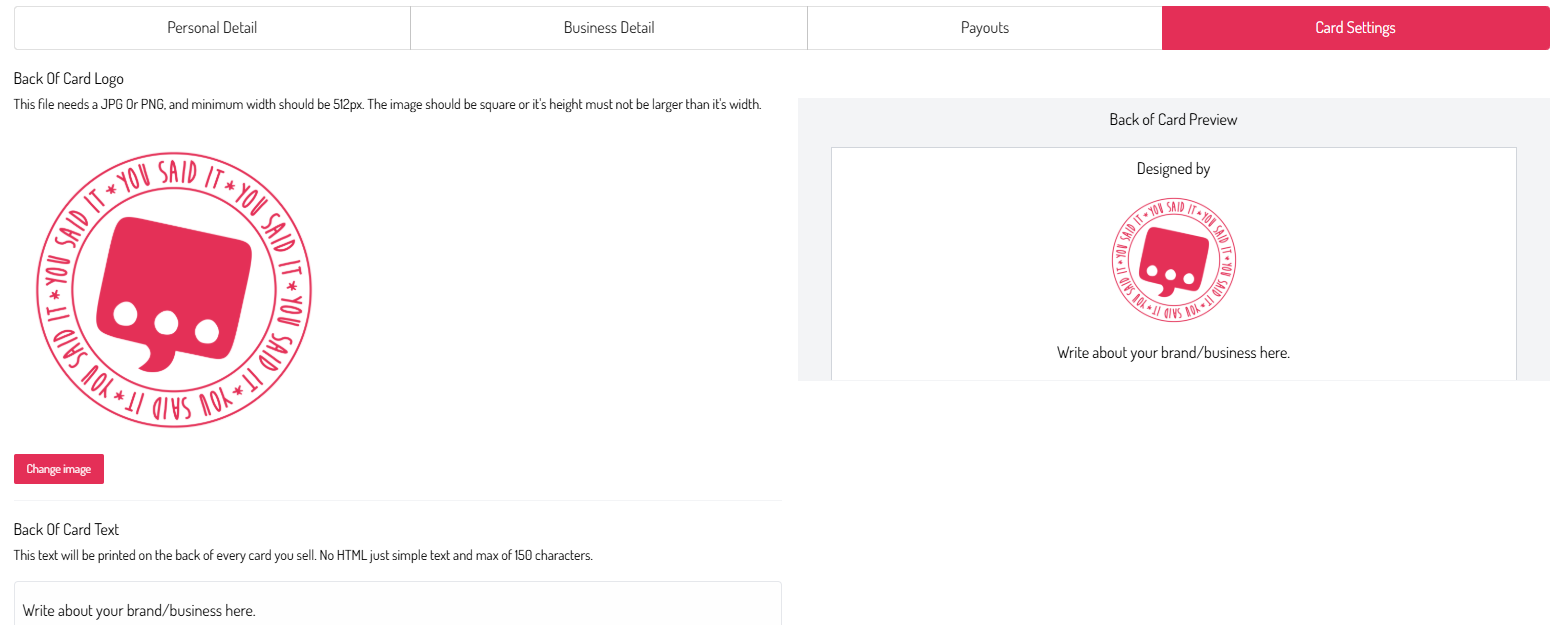
Once you’ve finished
This is a great way to promote you or your brand.