
Before you export
Start by checking that the Canva design itself is set up for the Marketplace artwork size. Fixing the size, bleed or positioning after export can reduce quality or change the design.
We've created a Marketplace square card template at the correct artwork size, so you can start designing without setting the canvas up from scratch.
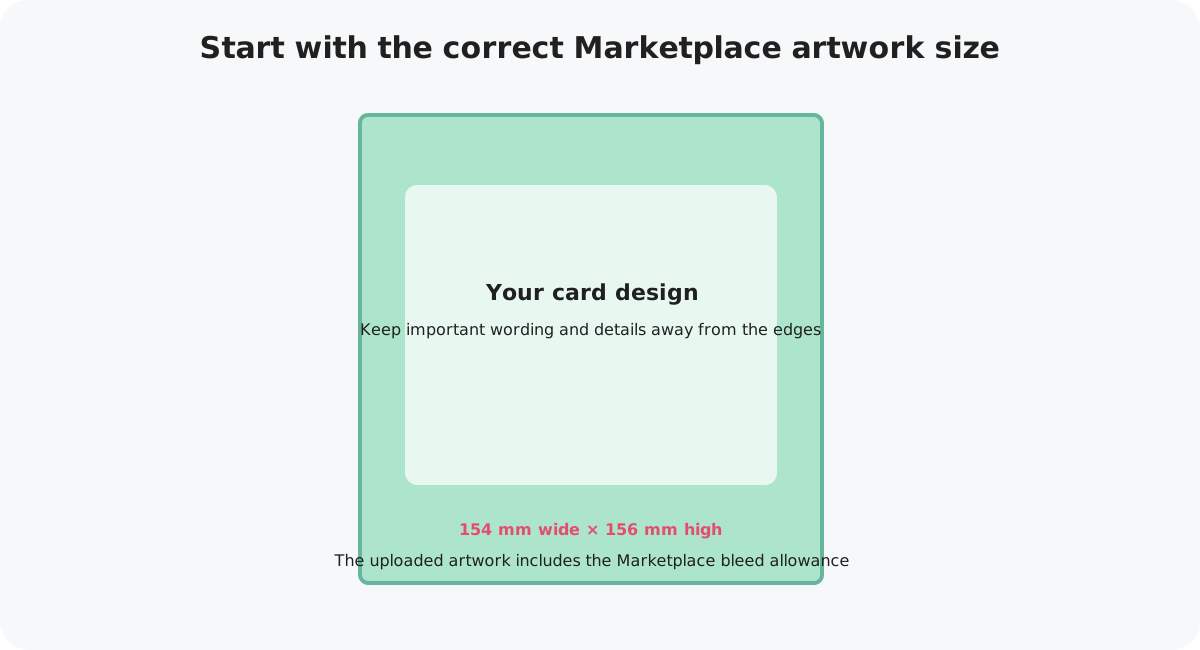
Be careful when resizing. Keep the Marketplace aspect ratio and check every element afterwards, especially text, borders and anything positioned close to an edge.
Export your design from Canva
Finish your design first
Check spelling, alignment and positioning. Make sure any edge-to-edge background reaches the outside of the artwork and important details are safely inside the trim.
Open Canva's download options
When the artwork is ready, use Canva's download/export controls to create the final image file. Canva's interface can change over time, so the exact position or wording of these controls may vary.
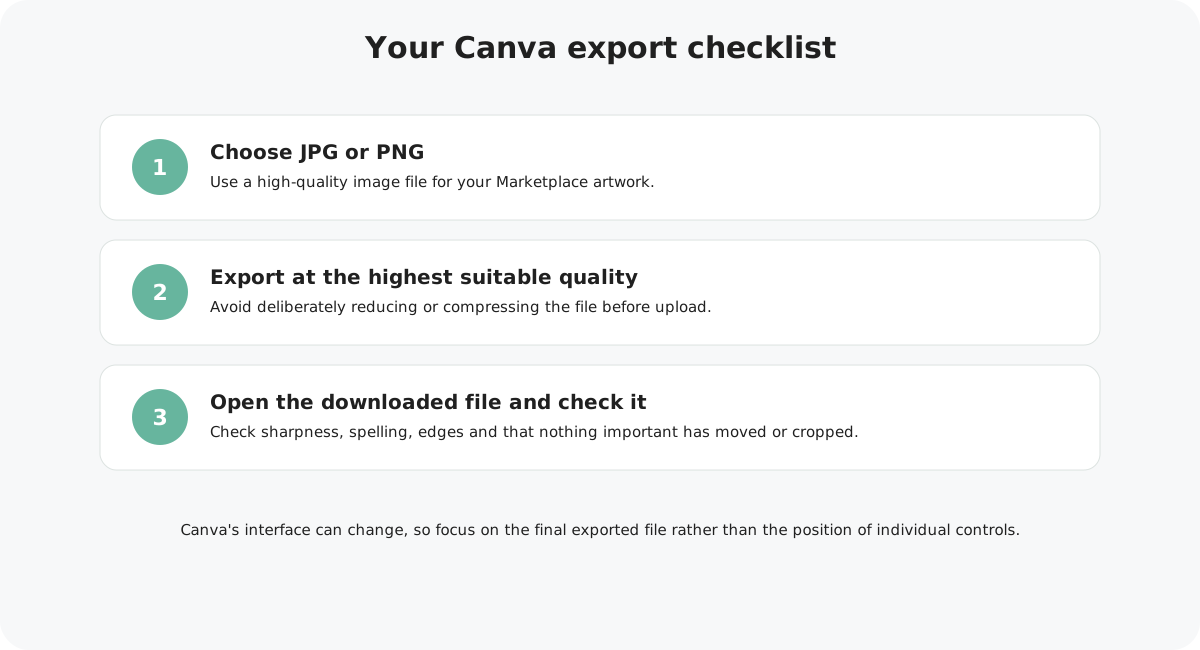
Choose JPG or PNG
For a standard Marketplace card, export the finished artwork as a high-quality JPG or PNG. Avoid screenshots or copying the design from your browser.
Keep the export high quality
Use the highest suitable image quality available to you. Do not deliberately shrink or heavily compress the design before uploading it to Marketplace.
Download the file
Save the exported artwork somewhere easy to find and give it a useful filename so you can identify the correct final version when uploading.
Check the actual downloaded file
Open the JPG or PNG you have just downloaded. Zoom in and make sure it is sharp, the background reaches every required edge and no text or artwork has unexpectedly moved or cropped.
Your export checklist
Your file still matches the 154 × 156 mm Marketplace artwork shape.
Images and wording look crisp when you inspect the exported file.
Background colours, photographs, patterns and illustrations that should run to an edge continue all the way to the outside of the file.
Important text, faces, logos and focal details are comfortably away from the trim edge.
Read the exported artwork again rather than assuming the Canva working file is correct.
A note about 300 DPI
For print, we want your final artwork to contain enough image information for a high-quality result. Simply changing a low-resolution image to say “300 DPI” does not create missing detail.
If an image was small, blurry or heavily compressed before you placed it into Canva, exporting the finished design at a larger size will not restore that lost quality.
Start with good-quality source artwork, keep the design at the correct Marketplace proportions and avoid reducing the exported file before you upload it.
What about colour?
Your screen produces colour with light, while your card is printed with ink on paper. That means some difference between screen and print is normal, particularly with very bright or highly saturated colours.
For Marketplace JPG artwork, an RGB/sRGB export is suitable for upload. Avoid repeatedly converting and re-saving the same JPG, as this can introduce unnecessary compression.
Common Canva export problems
Exporting a screenshot
A screenshot is not a suitable replacement for the original high-quality export and may be too low resolution for print.
Resizing after download
Repeated resizing can soften the artwork or alter its proportions. Set the design up correctly before exporting wherever possible.
Using a low-quality source image
Canva cannot add genuine detail that was not present in the original image.
Not checking the final file
The file you upload is what matters. Always inspect the downloaded JPG or PNG before submitting it for moderation.
Exported and ready?
Once your artwork is downloaded and checked, you can move on to uploading the card to Marketplace.
Need to start a new design? Open the Marketplace Canva template →