
Why we moderate artwork
Every design submitted to Marketplace is checked before it can be sold. Moderation helps us catch artwork issues that could affect the finished printed card or the customer experience.
If your design is rejected, it doesn't necessarily mean the design itself isn't suitable. In many cases, a small artwork adjustment is all that's needed before you resubmit it.
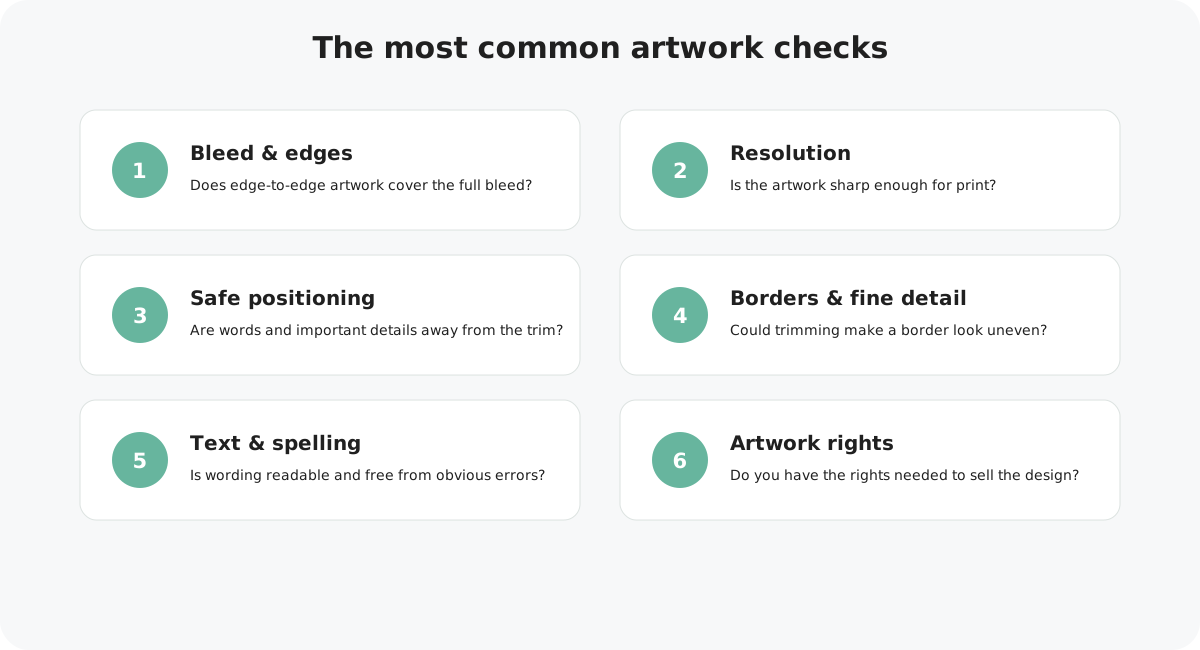
1. Artwork does not cover the full bleed
This is one of the most common reasons a design needs adjusting. If your background is intended to run to the edge of the card, it must continue all the way to the outside edge of the uploaded artwork.
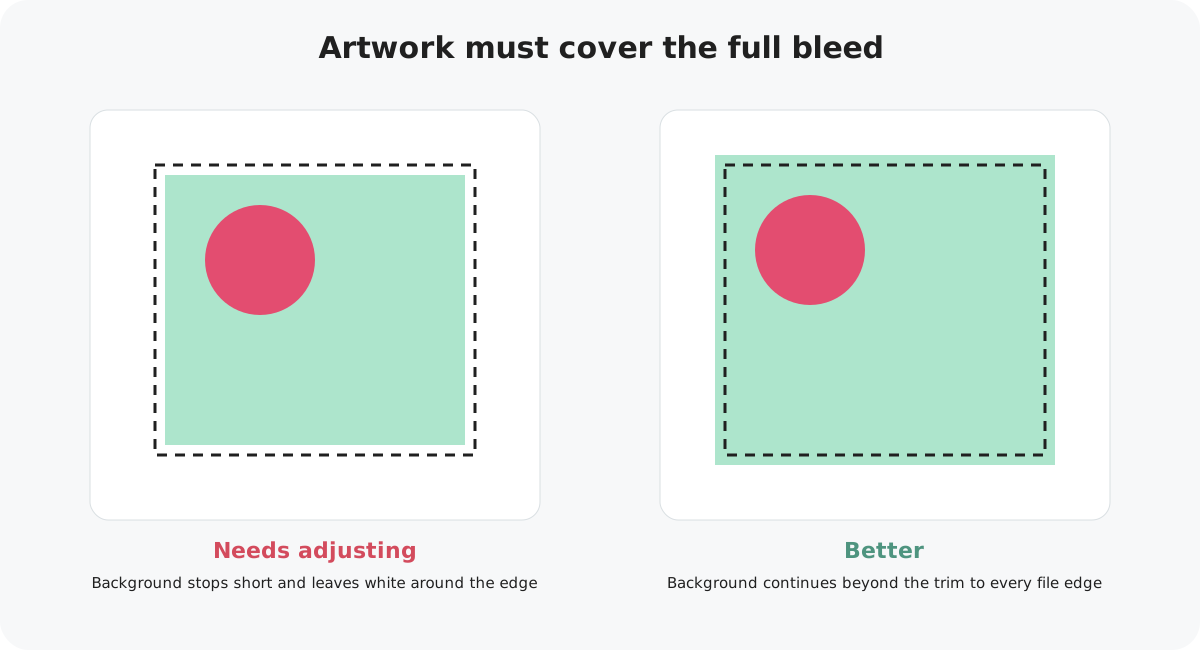
Extend the background colour, pattern, photograph or illustration to every required edge. Don't add a white border to make the file larger.
2. Artwork is too low resolution
Small images, screenshots or heavily compressed files can look blurry or pixelated when printed, even if they appear acceptable as a small screen preview.
Go back to the highest-quality original artwork and re-export the design. Avoid simply stretching a small image or changing its DPI number.
3. Text or important details are too close to the cut
Normal production trimming has a small tolerance. Wording, faces, logos and other important details positioned too close to the edge can look cramped or risk being clipped.
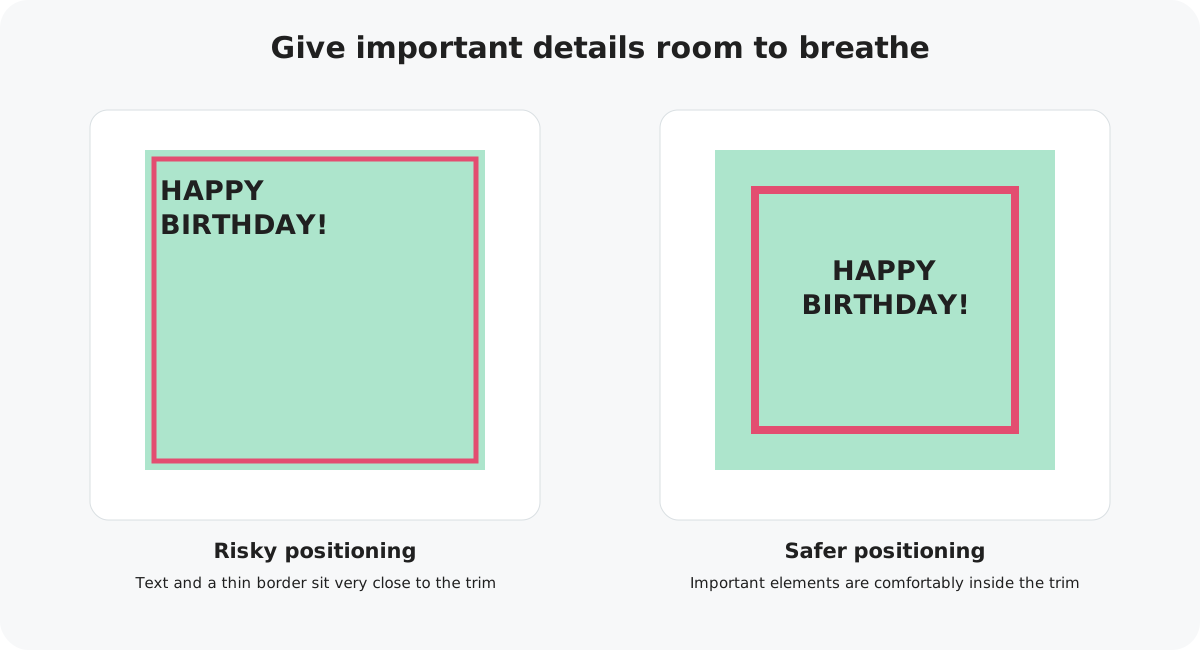
Move important elements further towards the centre and give them comfortable breathing room inside the trim.
4. Borders may print unevenly
Thin or tightly positioned borders can make tiny variations in trimming much more noticeable. A border can therefore look uneven even when the card has been cut within normal production tolerance.
Move the border further in, make it more substantial, or consider removing it if the design relies on perfectly equal spacing around every edge.
5. Text is too small, too thin or difficult to read
Very small wording or extremely fine type can lose clarity when printed. What looks readable while zoomed in on a large monitor may be much harder to read on a 15 cm card.
Check the design at approximately its finished physical size. Increase very small wording, use a clearer weight where needed and make sure there is enough contrast between the text and background.
6. Spelling or wording needs checking
Obvious spelling mistakes, duplicated words or unintended wording can affect the customer experience. Personalised placeholder text should also be clear and intentional.
Read every piece of wording carefully in the final exported artwork. It can help to read the text aloud or ask someone else to check it before resubmitting.
7. Lines or design details are too fine
Extremely thin lines and tiny decorative details can become less distinct in print, particularly where there is low contrast.
Increase the weight of essential lines and inspect the design at finished card size rather than judging it only while zoomed in.
8. Copyright or artwork rights
You need the appropriate rights to sell the artwork you upload. Designs containing protected characters, logos, photographs, illustrations or other third-party material may need to be rejected if the necessary rights are not clear.
Only submit artwork you created yourself or material you have the appropriate commercial rights or permission to use. If we ask for clarification, provide the relevant information before resubmitting.
9. AI-generated designs
AI-generated designs can be uploaded to Marketplace, but they are treated differently from standard designer-created artwork. AI designs are set to Profile Only, so they are not eligible for inclusion in the main catalogue or Marketplace marketing.
Face Swap cards are handled separately and can be eligible for the main catalogue, subject to the usual artwork and moderation checks.
What should I do after a rejection?
Read the rejection reason
Use the moderation message as your starting point so you know which part of the artwork needs attention.
Fix the original design
Where possible, make the change in your original design file rather than repeatedly editing an already-compressed JPG.
Export a fresh file
Create a new high-quality JPG or PNG and inspect the exported artwork before uploading it again.
Resubmit the corrected artwork
Once the issue is resolved, submit the updated design for moderation again.
Before you resubmit
15.4 cm wide × 15.6 cm high.
Edge-to-edge backgrounds reach the outside of the artwork file.
Artwork is sharp and suitable for print.
Text, faces and important details are comfortably inside the trim.
All wording is intentional and correct.
You have the appropriate rights to sell the content used in the design.
Ready to try again?
Run through the complete artwork preparation guide before resubmitting your design.